View Discount Codes

View Discount Codes

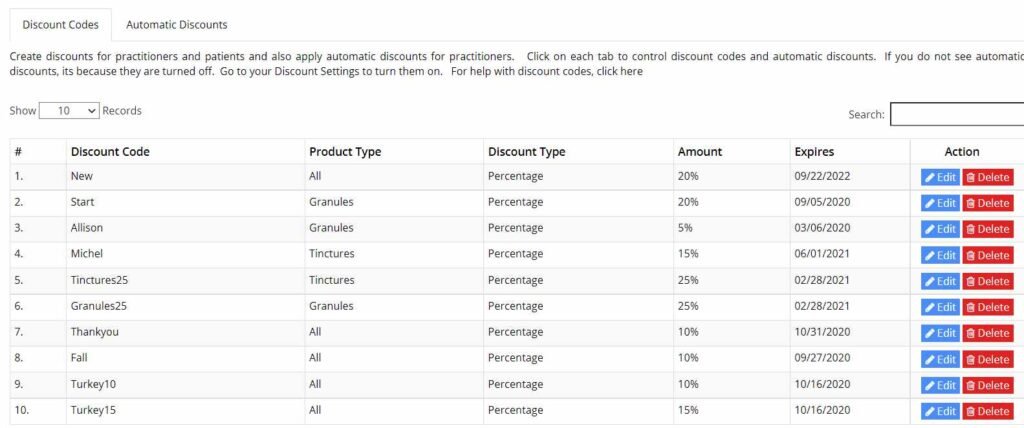
The Discount Codes table provides a centralized view of all promotional codes configured in the system. Each row represents a single discount code and displays key information, including the code name, discount type and value, usage limits, expiration date, and current status (active or inactive).

From this table, you can efficiently manage discount codes by:

  • Reviewing and sorting codes to quickly identify active, inactive, or expiring promotions

  • Editing existing discount codes to update values, limits, or validity dates

  • Enabling or disabling discount codes without deleting them, allowing for temporary or seasonal promotions

  • Deleting outdated or unused discount codes to keep your list organized

The table is designed for quick visibility and day-to-day management, allowing you to maintain accurate and effective discount offerings without needing to open each discount code individually.

    • Related Articles

    • View Orders

      Orders Module Overview Navigation: Go to Admin > Orders The Orders module is where all orders placed by practitioners or patients are managed. Once an order is submitted, it will appear in this section until it is completed, cancelled, or archived. ...
    • Create a Discount Code

      Instructions to Create a Discount Code Click Add New and complete the following fields: Discount Code Enter the exact discount code you want to create. Discount codes are case-sensitive. Expiry Date Set the date when the discount code will expire. ...
    • Discount Settings

      Discount Settings Navigate to Admin → Settings → Discounts to manage discount behavior. Calculate Discounts Using Markup Amount This setting determines whether discounts are calculated on the total order price including practitioner markup, or on the ...
    • Automatic Discounts

      Automatic Discounts Navigate to Admin → Discounts → Automatic Discounts. An automatic discount reduces the price of one or more products or formulas by either a percentage or a flat amount, without requiring a discount code. By default, these ...
    • Zone Settings

      Zone Settings Navigate to Admin → Settings → Zones to manage geographic zones used throughout your dispensary. A zone represents a geographic region and can include: Country State or Province City or Town ZIP or Postal Codes Your dispensary is ...