Admin Notifications

Admin Notifications

Admin Notifications

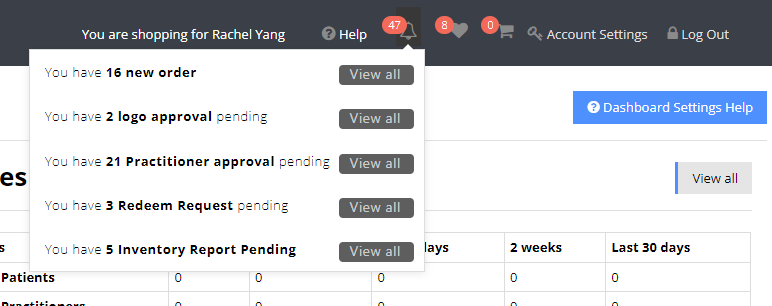
Admin notifications alert you to important activity within your dispensary. Notifications appear in the top navigation bar as a bell icon, with a number indicating how many unread notifications you have.


Notification Types

The notification count increases when any of the following events occur:

  1. An order is submitted

  2. A new practitioner registers

  3. Vouch access is requested

  4. A practitioner uploads a logo

  5. A markup or credit request is submitted

  6. A report is completed


Sound Notifications

You may assign a unique sound to each notification type.

To manage sound alerts—including enabling or disabling sounds and selecting which sound plays for each event—refer to Sound Notifications in your settings.


Admin notifications help ensure you stay informed and can respond quickly to key events in your dispensary.

    • Related Articles

    • Sound Notifications

      Sound Notifications Navigate to Admin → Settings → Notifications → Sound Notifications to configure audio alerts for events in your dispensary. Sound notifications allow you to assign specific sounds that play when key events occur, helping you stay ...
    • Email Notifications

      Email Notifications Navigate to Admin → Settings → Notifications → Email to manage all email-related settings. An Email Notifications Help Video is available for step-by-step guidance. Email Customization You can customize all emails sent to ...
    • Practitioner Notification

      Practitioner Notification Navigate to Admin → Settings → Notifications → Practitioner Notification to configure practitioner login notifications. This feature allows you to display a popup notification to practitioners when they log in to their ...
    • Text / SMS Messages

      Text / SMS Messages Navigate to Admin → Settings → Notifications → SMS / Text to manage text message notifications for your dispensary. You can customize SMS templates that are sent automatically to admins, patients, and practitioners based on system ...
    • Credits & Markups

      Credits & Markups Navigate to Admin → Settings → Orders → Payment Methods → Credit Configuration to manage credits and markup behavior. How Credits Work Credits are generated when practitioners apply markups to orders. The markup amount is ...